- Go to "%appdata%" - Open ".minecraft" - Open "versions" - Create a folder and call it "huzuni" - Extract the huzuni.zip - Put in the "huzuni.jar" and the "huzuni.json" - Start your Minecraft Launcher - Click on "Edit Profile" - Click in "Use version: " on "release huzuni". - Click on "Save Profile". - Start Minecraft.
Gui Menu: Left Control Console Menu: Right Control
Install
- Go to "%appdata%" - Open ".minecraft" - Open "versions" - Create a folder and call it "Weepcraft" - Extract the Weepcraft.zip - Put in the "Weepcraft.jar" and the "Weepcraft.json" - Start your Minecraft Launcher - Click on "Edit Profile" - Click in "Use version: " on "release Weepcraft". - Click on "Save Profile". - Start Minecraft.
- Go to "%appdata%" - Open ".minecraft" - Open "versions" - Create a folder and call it "Nodus" - Extract the Nodus.zip - Put in the "Nodus.jar" and the "Nodus.json" - Start your Minecraft Launcher - Click on "Edit Profile" - Click in "Use version: " on "release Nodus". - Click on "Save Profile". - Start Minecraft.
3- Press "OFFLINE SKINS!" to use costume skins and cloak.
4- enter your username and press "submit".
5- direct from the launcher Switch to "Skin Upload" tab and upload your skin and cloak or u can navigate to http://skins.blackpulse.us/ and do the same thing and go to step 9.
6- If u wan to try demo minecraft (demo world) leave it username empty and press "submit" next screen just enter any "username" and press "Log In".
7- If you wan to play with your premium account follow demo steps but enter your premium "username" and "password" press "Log In".
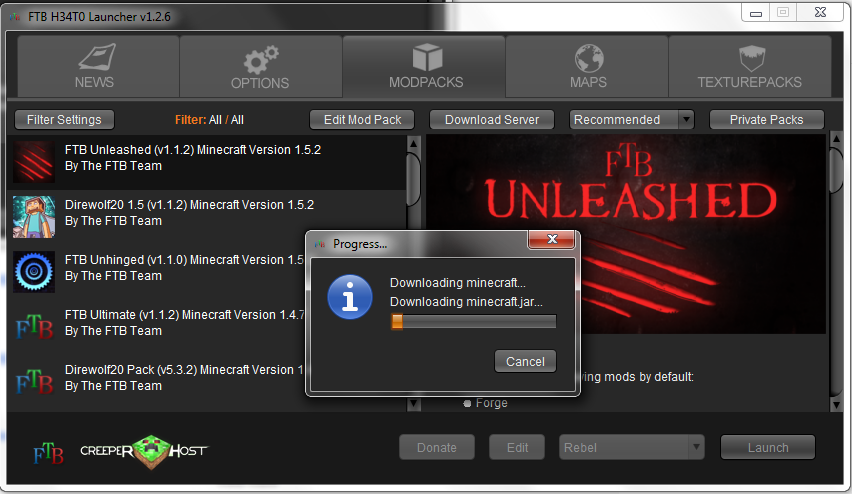
8- For 3 types wait complete Download or update .
9- Press "play " .
- Enjoy and don't forget to share it with ur friends .